Shop owner Manuel

In this post, we will talk about how to use the site in relation to the “seller” in addition to the most prominent services that the site provides to the sellers

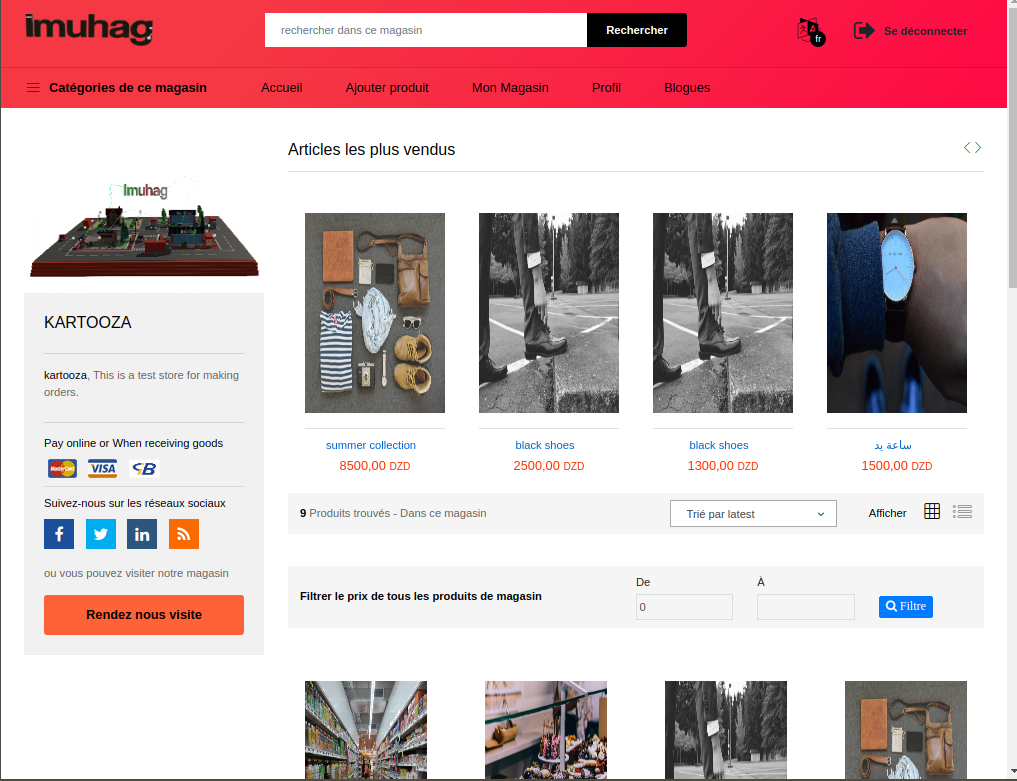
Our platform offers sellers or shop owners the opportunity to easily create an online store with simplified tools for managing and processing orders efficiently. The goal is to help grow your business and expand into new markets by providing a range of services tailored to different store types, including support for both national and international payment systems.Additional features include setting delivery zones on an interactive map—whether for provinces, districts, or specific neighborhoods, which is particularly beneficial for stores like restaurants, grocers, and other sellers that require precise delivery areas. You can also track the best-selling regions, top-selling products, monitor inventory status, and much more. Our platform is designed to streamline the seller's experience, allowing you to focus on what matters most—growing your business. This guide will walk you through all the key features that will help you succeed.


Register

In order to register, all you have to do is follow these steps
  • Go to the registeration page
  • Fill out the information form by entering your information, store location, store category and description of the store
  • Confirm the account by clicking on the link that you will receive in the email
* By completing these steps, you will be able to login into your new account

Activate your account

In order to activate your account, all you have to do is follow these steps
  • Log in to your account by entering your email address and password
  • On the home page, you just have to click on MyShop
  • Click then on "profile".
  • Click on "Security".
  • Next to the phone number click on "confirm".
  • Send SMS to the number in the popup window.
Your account will be successfully activated after completing these steps successfully.

My Shop Dashboard

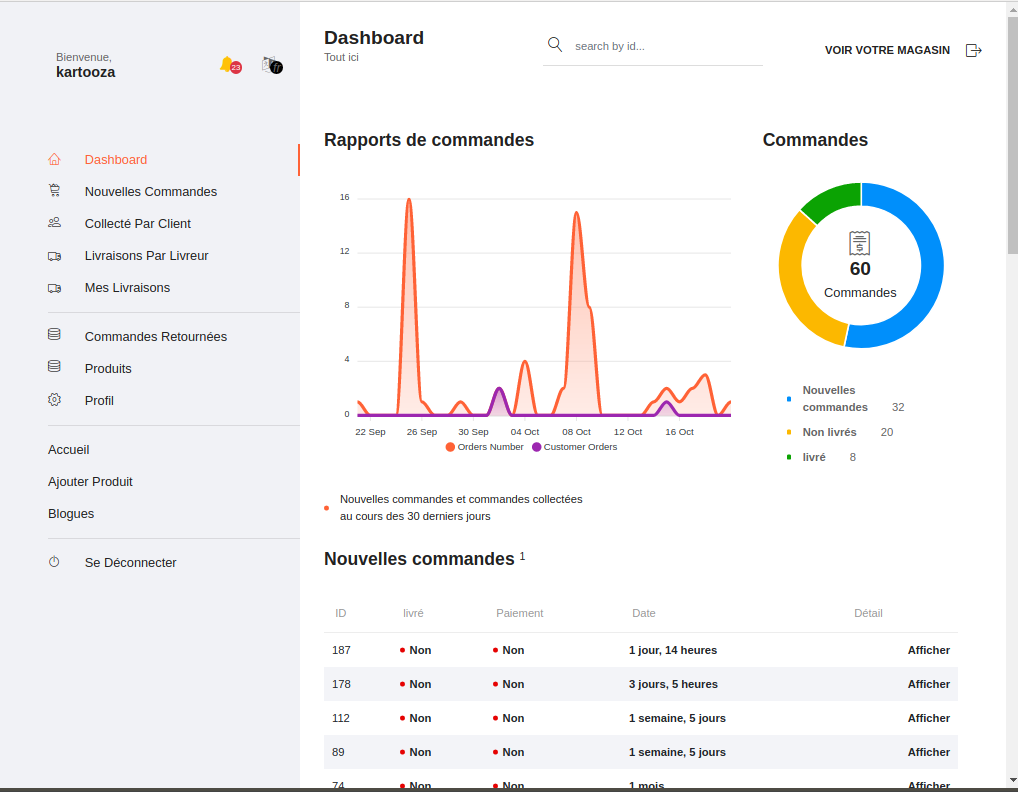
This page contains all orders reports, their status and item statuses in stock, where you can find on this page new orders, collected by client, Delivery by deliver, My Deliveries and My Product in addition, links to all these reports
You can also search for an order or scan - read - an order bar code through this page

New orders

New orders are the orders that the customer has ordered recently. It also includes the orders that the Deliver refused to accept or that the seller canceled from the delivery page or from the delivery offers (sent to delivers)
You can on this page:
  • Find all new orders that the seller has deleted from the deliveries page and from the delivery offers
  • Searching for a new order
  • Follow up on the status of new orders
  • View an order for processing

New Orders Handling

...
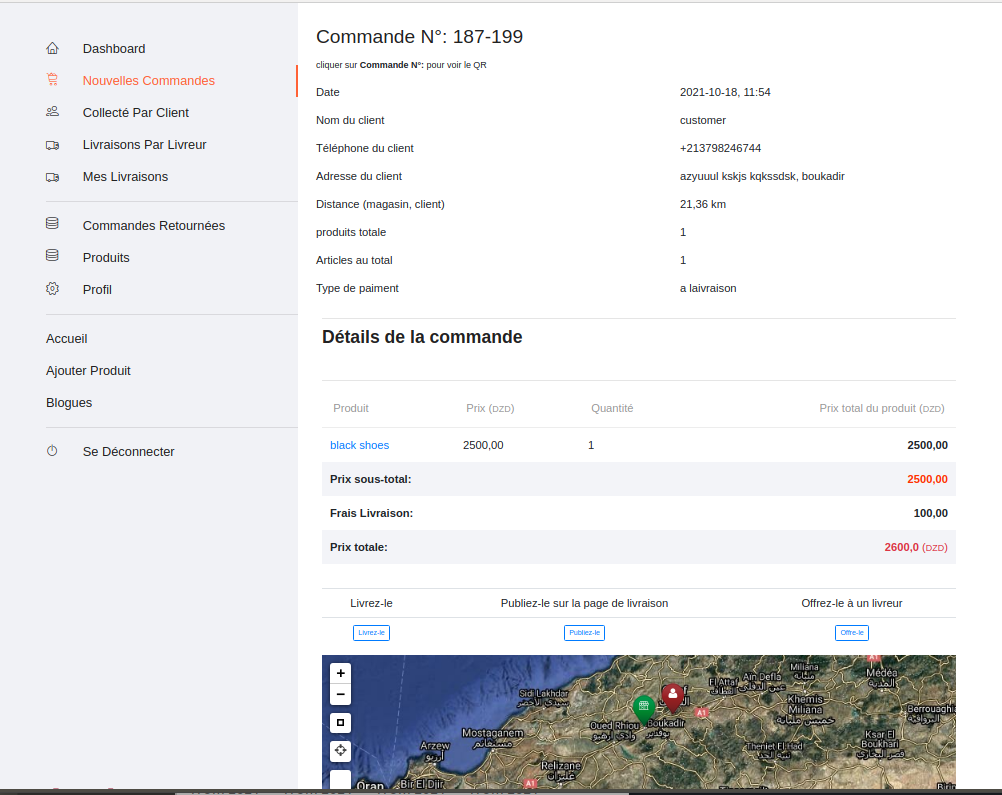
On this page you can find all the order information, including the order requester information, the payment method, the customer's location on the map as well as three options for processing the order.
In order to process the order, the site provides three options:
  • Deliver it
  • Post it
  • Offer it
Deliver it

By choosing this option, the seller is the one who will deliver the order to the customer, meaning that the delivery costs belong to the seller, after confirmation, the order will be transferred from 'new orders' to 'my deliveries'. The site will give you the way to the delivery site.

Post it

In this option, you can choose either express delivery by crossing out the express delivery box or normal delivery
By choosing express delivery, the site will offer the delivery to delivers in the area one after one starting with closest, across a 10 km range. Any deliver outside this range will not be able to see this order
By not choosing express delivery and pressing send, the delivery will be published directly on the deliveries page under the normal delivery feature. this feature does not have limited range area.

Offer it

If you want to offer the delivery to a deliver, you just need to enter the deliver's name and click on send
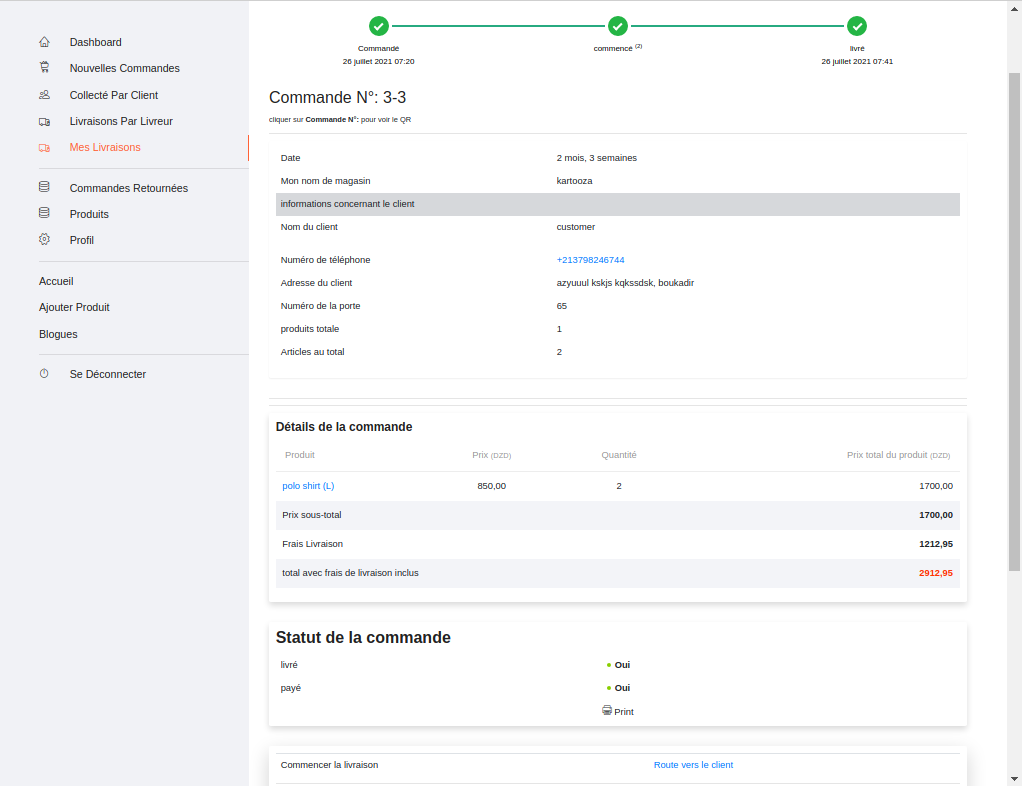
You can cancel the delivery at any time unless any Deliver takes it after the cancellation, the order will return to the New Orders.

Collected by client

customer chooses to come to the store and collect the order.No delivery price will be charged.
The customer is allowed to choose this feature only if the payment is made electronically.
You can on this page:
  • Search for an order by order ID
  • Track the order status
  • View order details for processing

Deliver by deliver

This page contains the orders that the seller posted on the delivery page, deliveries offered to a deliver and deliveries accepted by the deliver.
You can on this page
  • Search for an order by order ID
  • Monitor connection status
  • View connection details for processing

My Deliveries

...
This page contains the orders that the seller or shop owner will deliver.
You can on this page
  • Search for an order by order ID
  • Track your delivery/order updates
  • View delivery details for processing
  • Show delivery location on the map
By clicking on 'View', you will be directed to the order details where you can find all the details related to the order.

Returned orders

This page contains the orders that the customer requested to return.
You can on this page
  • Search for an order by order ID
  • Track the returned delivery status of the order
  • View the details of the returned order for processing
By clicking on 'View', you will be directed to the order details where you can find all the details related to the order

On the returned order details page, you can see the reason for the return, then you can process the return of the order by choosing a method to return your item. the site provide with three option to return your item: collect it -you will grab your item from the delivery location of the item-, post it -post it on delivery page-, or offer it -offer it directly to a deliver-. After the order is in the process of being returned, you can confirm the receipt of your item, and you can send money electronically to the customer in the case of orders paid electronically. As for the costs of delivery of the returned order, they are predetermined in « My Delivery Settings ».
My Products

...
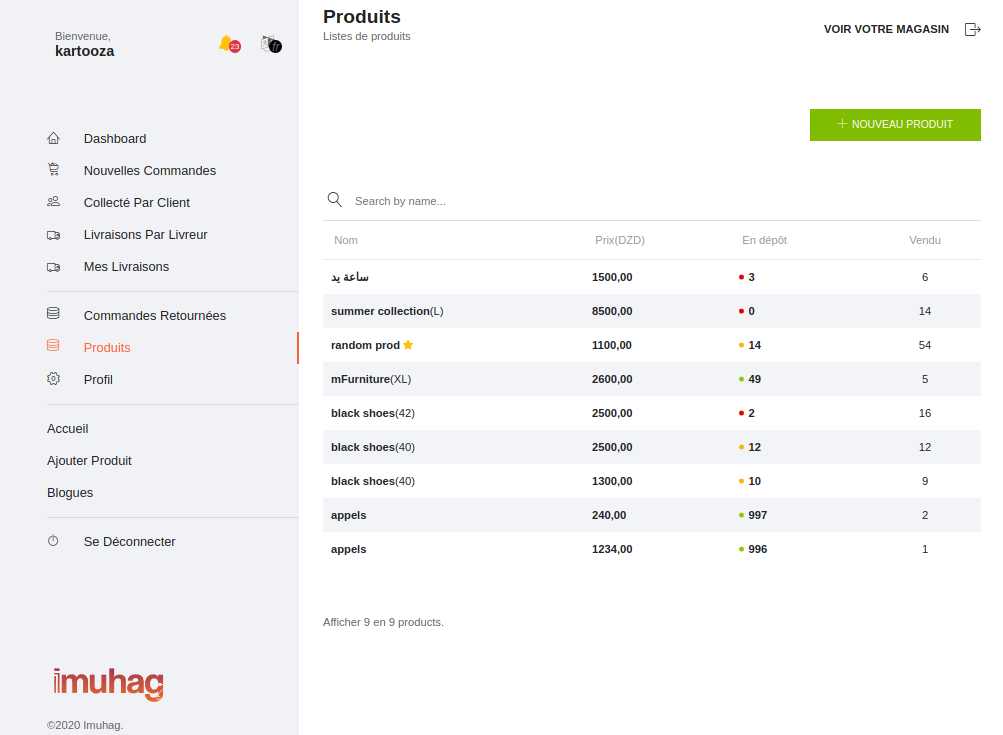
This page contains all the products/items you have added.
You can on this page
  • Find an item by name
  • Keep track of the item's status in stock
  • Monitor the quantity sold of each product
By clicking on "product name", you will be directed to the product page. From this page, you can edit or delete the item.
Best selling product will be added

Add product

In order to add an item, you just have to click on « Add Product », which will take you to the Add Item page.
In order to add an item
  • Enter the name of the item
  • Select the item category and subcategories if any
  • Item selling price
  • Quantity in stock
  • Item Description
  • Item Pictures
  • Item specification
You can copy information for an existing item by pressing “Copy Item”... For example, if you have an item of different sizes, you only need to add the first item and then copy the information in the second item. All you have to do is change the size and images of the item.
The name of the item is recommended to be optimized for search engines.
Selecting the subcategory is important to find your item Example *Men's shirt* Case 1 Sort the shirt into the main category 'clothing' / Case 2 Sort the shirt into the main category 'Clothes' and select the first subcategory 'Men's clothing' and Subcategory 2 'Men's shirts'
In the first case: If a customer searches for a clothing category, your item will appear to him, but if he searches for a men's clothing or men's shirts category, your item will not appear, but in the second case, the item will appear in the three categories.
You will also be asked to add the size and color in the categories that depend on these characteristics.
Item images: You must add four images, including the main image that appears in the product list on the site and on search engines, it is recommended to add images with a white background.
Item specifications: must be specified because delivery prices are determined according to these specifications.

Profile

...
This page contains your personal information , store and shop information.
You can find on this page:
  • general information
    • personal information
  • Security
    • E-mail Settings, red color indicates that it is not activated and green is activated
    • The phone number Settings, the red color indicates that it is not activated and the green color is activated
    • allow visitors to your store to see your phone number or not
    • Edit password
    • delete account
  • Payment
    • Add an electronic payment system
  • MyShop
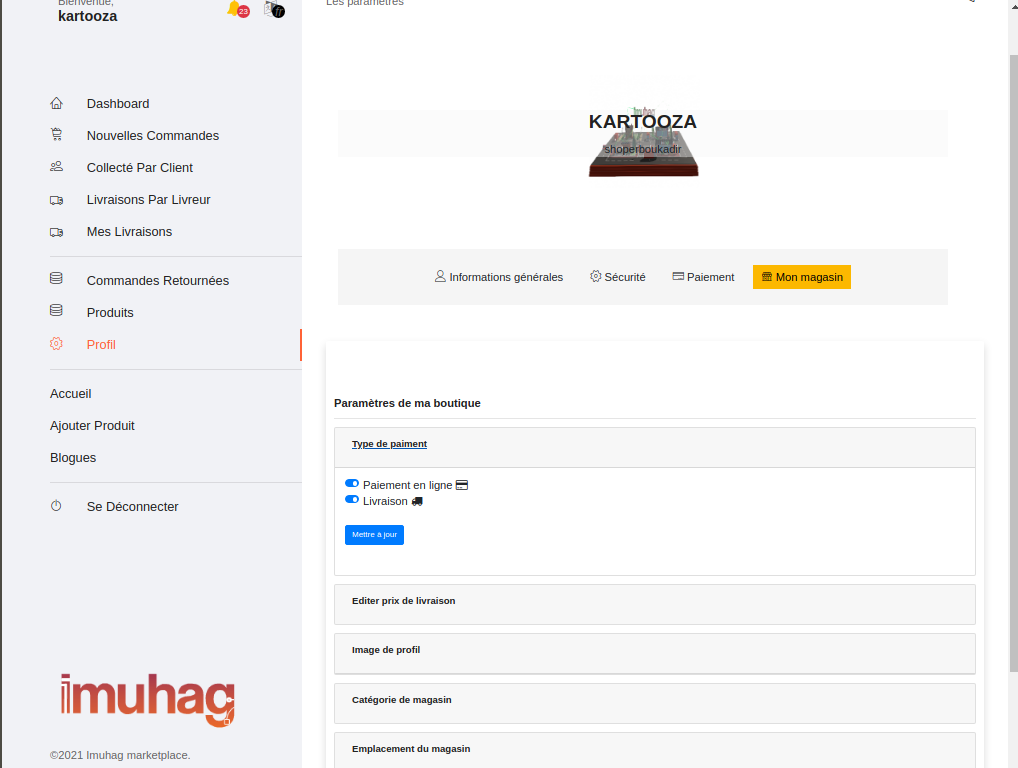
    • Payment type: Choose the type of payment electronically, on delivery, or together
    • Delivery Pricing Settings
    • Edit the image of the shop
    • Edit shop category
    • Edit the location of the shop on the map
Payment type

The site relies on two types of payment: "Payment when recieving goods" and "Electronic Payment". Payment upon delivery is automatically activated and electronic payment can be activated after adding your electronic payment informations.

Delivery Pricing setup

You can go to this page by clicking on: Profile >> My shop >> Setup delivery prices >> Add or setup

Delivery pricing

The site offers two options, either the default mode or the custom mode

default mode

This mode is activated automatically. In this mode, you can specify or draw the area to which the store can deliver on the map with the addition of a price for this area, where in this mode all weights under 30 kg have the same price and the delivery price for the return order is half the delivery price specified by the seller.

This mode is suitable for stores that want to deliver to specific places only.

Custom mode

This situation is determined automatically according to the approved method of delivery in the country. It is divided into two parts:

Delivery by city

In this mode, you can have absolute control over the delivery prices, as you can adjust the prices according to weight, specify return prices, and activate or stop a city from the list of places that the store can deliver to.

For now, this mode is only available in Algeria.
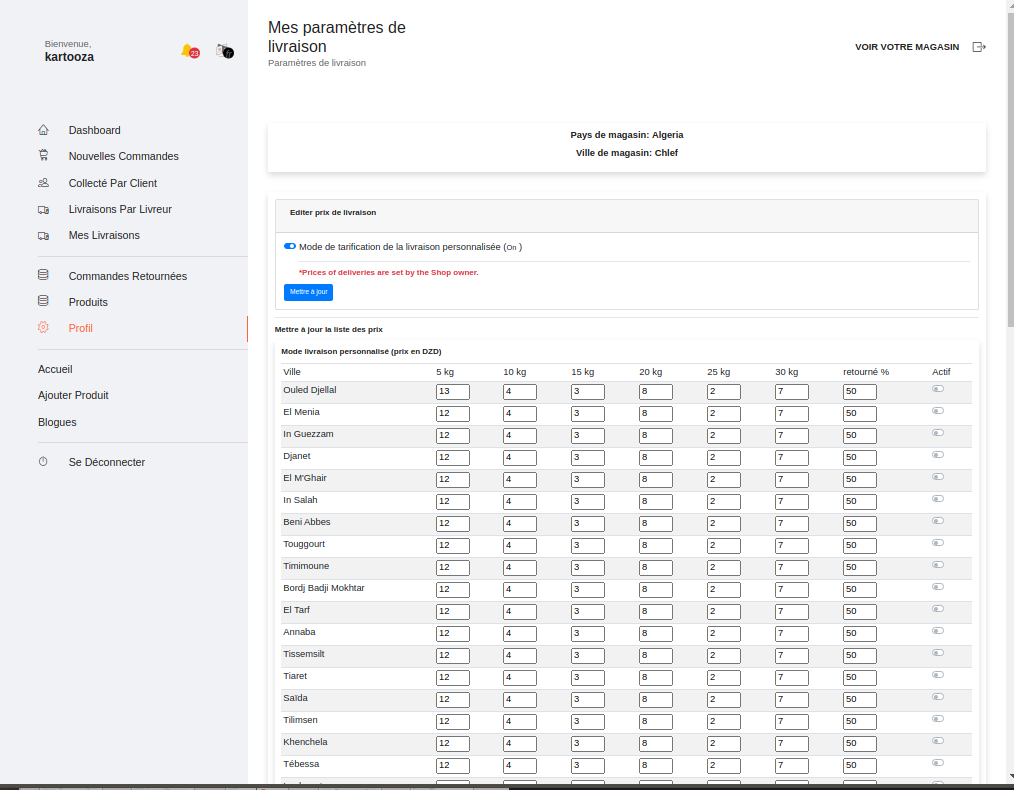
Taux de livraison par villes en Algérie

Picture representing delivery prices in private mode

Delivery by distance (per km)

This mode determines the delivery price according to the distance between the store and the place of delivery. All weights "less than 30 kg" have the same price.

Delivery prices for how much are determined by the site. You can see the prices here ici

Change email

In order to change your email, all you have to do is go to Profile >> Security >> and click on Edit

You will be directed to the e-mail edit page, enter the password and the new e-mail, then click on update, you will receive a confirmation e-mail, click on the link in it to activate the new e-mail.

Change phone number

In order to change the phone number, all you have to do is go to Profile >> Security >> and click on Edit

You will be directed to the phone number modification page, enter the country code, then the new phone number, then the password, then press update,

Then activate the new phone number

change Password

In order to change the password, all you have to do is go to Profile >> Security >> and click on Edit

You will be directed to the password modification page, enter the old password, then the new password, and retype the new password. Then click on Update.

Change the image of the shop

In order to change the image of the shop, all you have to do is go to Profile >> My Shop >> Profile Image >> choose file >> and click Update.

This image will appear as a picture of your store in the list of stores and on your store page.

Change shop category

In order to change the store category, all you have to do is go to Profile >> My Shop >> Shop Category >> Choose a new category >> and click Update.

Change the location of the shop

In order to change the location of the shop, all you have to do is: go to Profile >> My Shop >> Shop Location

A map will appear, all you have to do is:

  • Click on Draw a marker
  • Place the icon on your store's website
  • Click Update

In order to determine your location on the map, you can click on the “Current Location” icon